Install and set up R and RStudio
Before the workshop starts, you’ll need to install R (the programming language), RStudio (the editor/IDE we’ll use to interact with R), and if you can, two R packages. The instructions to do so follow below.
1 Install R and RStudio
1.1 Option 1 (If you have an OSU-managed computer)
If you are using an OSU computer, you may not have the “administrative privileges” that are needed to install software on your computer the regular way like described below.
However, you should have an OSU application on your computer that allows you to install a selection of approved software, including R and RStudio. On Windows, this app should be called “Software Center”, and on Mac, “Ohio State Application Self Service”.
Find that OSU software application and use it to install R and RStudio.
Consider using Posit Cloud to run RStudio in your browser, as detailed at the bottom of this page.
1.2 Option 2 (If you have a personal computer)
Below, there’s a separate tab with installation instructions for each operating system:
Installation on Windows:
Install R: download and run this .exe file from CRAN.
Install RStudio: Click the download button below “Install RStudio” on this page.
Note that if you have separate user and admin accounts, you should run the installers as administrator (right-click on the .exe file and select “Run as administrator” instead of double-clicking). Otherwise problems may occur later, for example when installing R packages.
Installation on MacOS:
Install R: download and run this .pkg file from CRAN.
Install RStudio: Click the download button below “Install RStudio” on this page.
The video below walks you through this process:
Installation on Linux:
Install R: Instructions for R installation on various Linux platforms (Debian, Fedora, Redhat, and Ubuntu) can be found at https://cran.r-project.org/bin/linux/.
Install RStudio: Click the download button below “Install RStudio” on this page.
2 Install two R packages
If you are comfortable doing so, please install two so-called R packages (basically, add-ons to the functionality of the language) that we’ll use during the workshop:
Open RStudio on your computer
In RStudio, find the R “Console”: this is the primary tab in the (bottom) left panel
Type or paste the following commands in the R Console, pressing Enter (Return) after each:
install.packages("gapminder")install.packages("tidyverse")
You should see a bunch of text stream by in the Console while these packages are being installed. When it’s done, test that the packages were successfully installed by loading them:
library(gapminder)library(tidyverse)
The first command should produce no output, while the second should print something along the following lines:
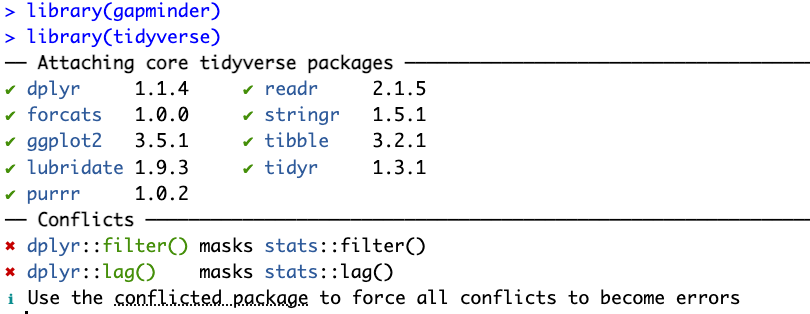
If you got an error when loading one or both packages, please contact one of the instructors.
3 Using Posit Cloud
Having trouble getting R/RStudio to work? You can try using RStudio through Posit Cloud using their free tier.
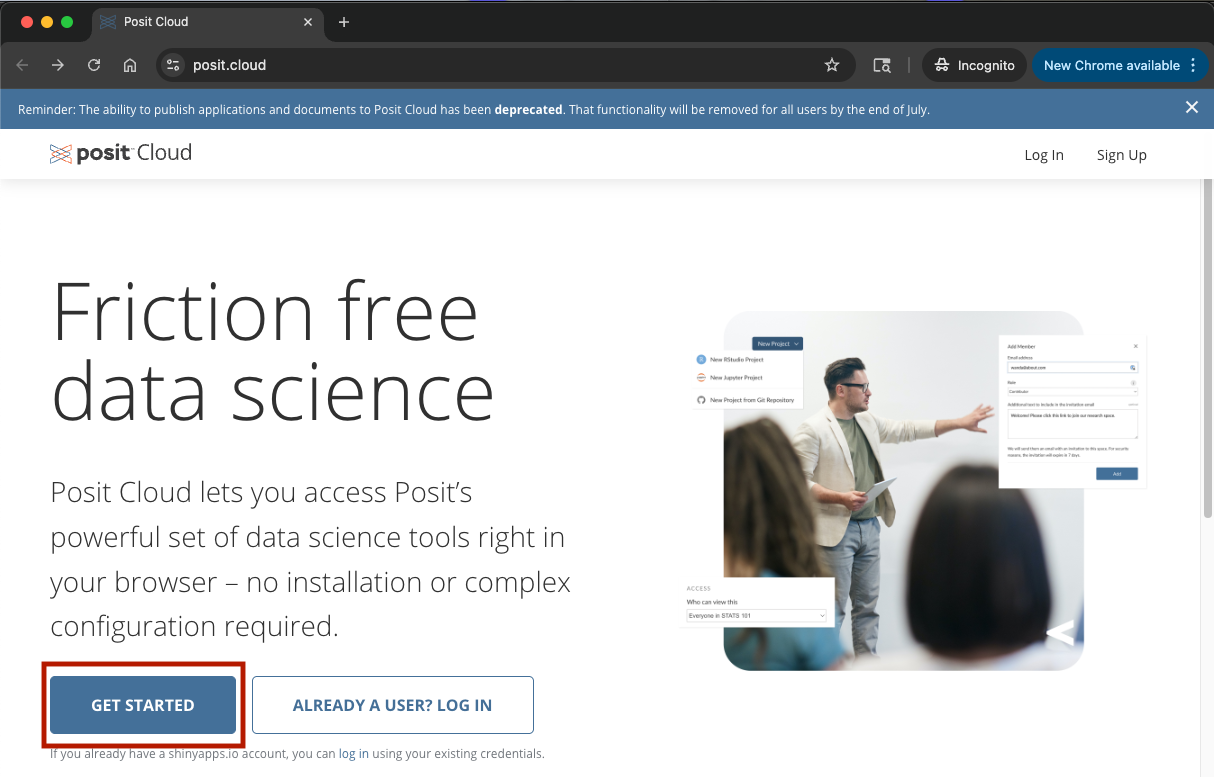
- Go to https://posit.cloud and click “Get Started”:
- Select “Learn more” under “Cloud Free”:
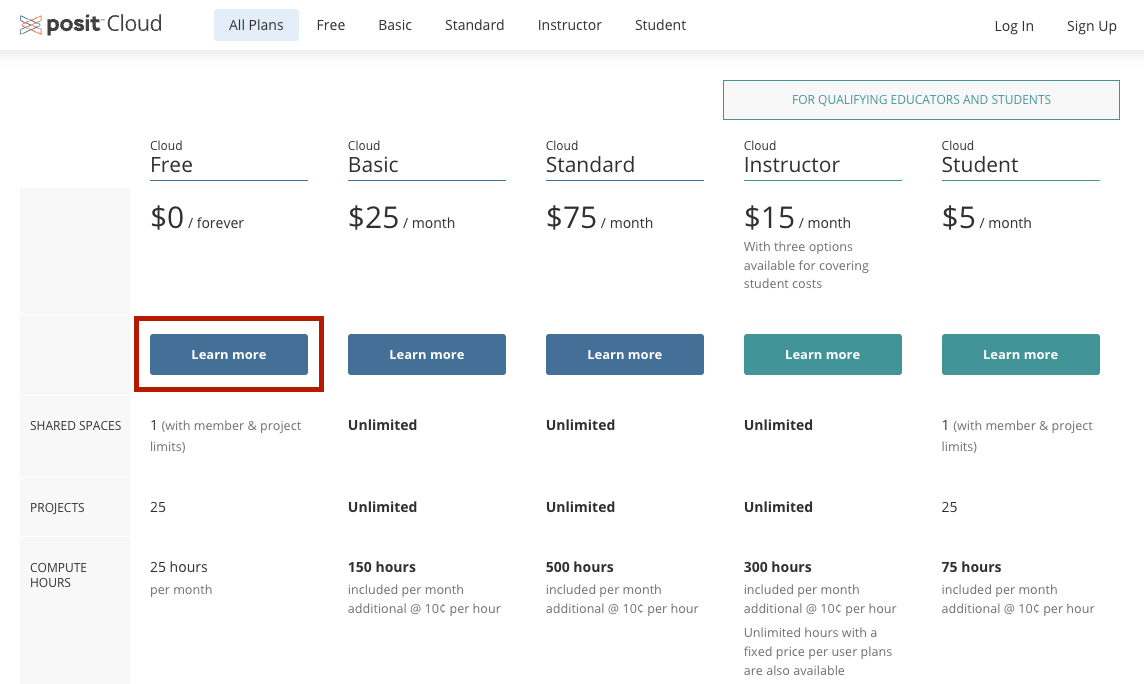
Sign up for Cloud Free by creating an account, or signing in with Google, GitHub, or Clever.
Create a New Project > New RStudio Project:
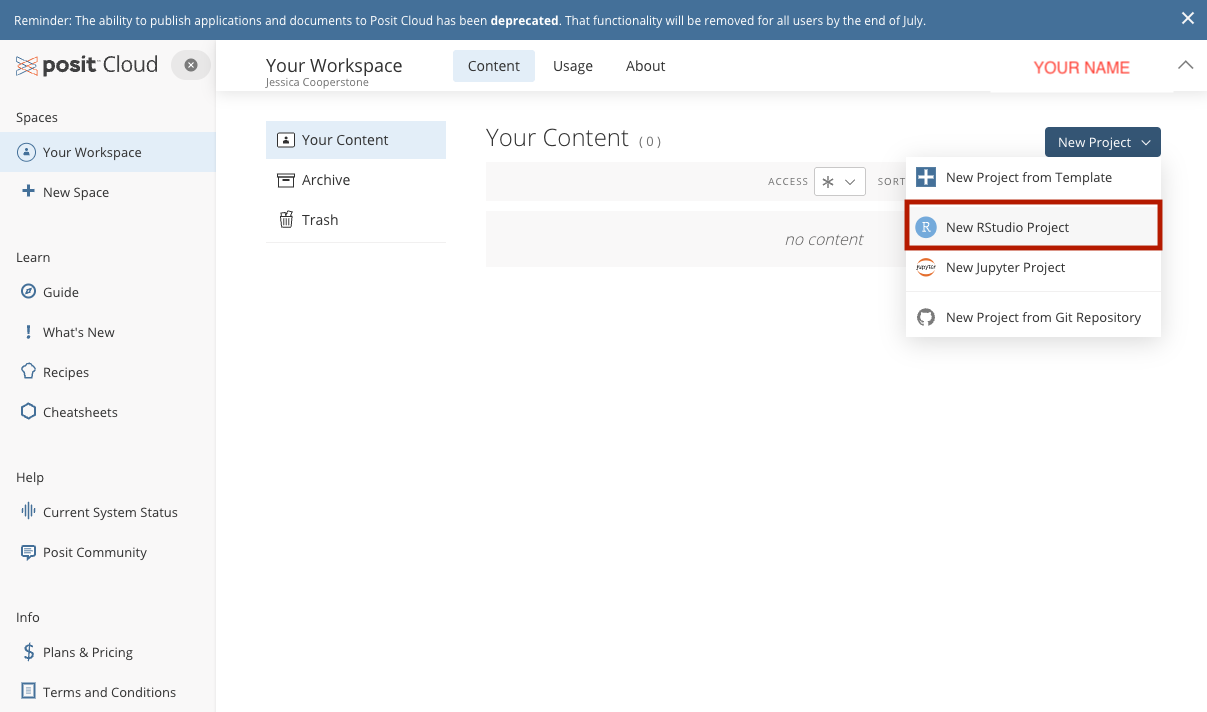
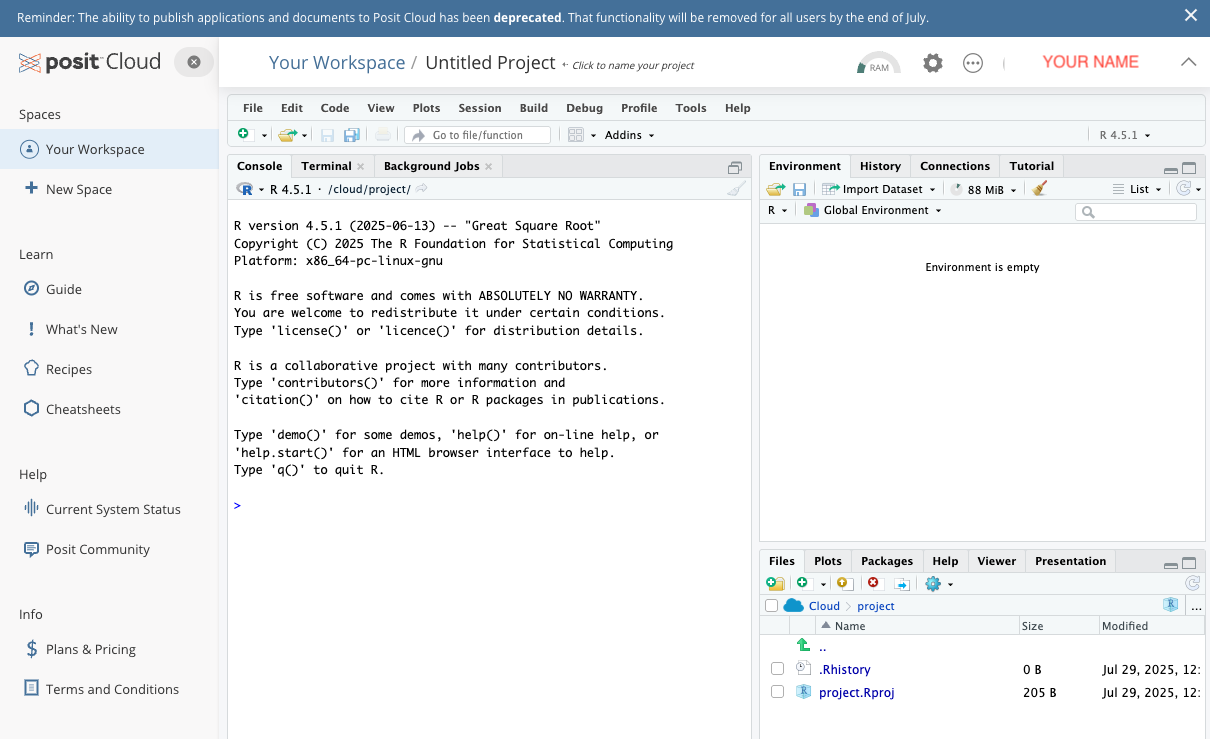
- Now you can use R through RStudio on Posit Cloud!